


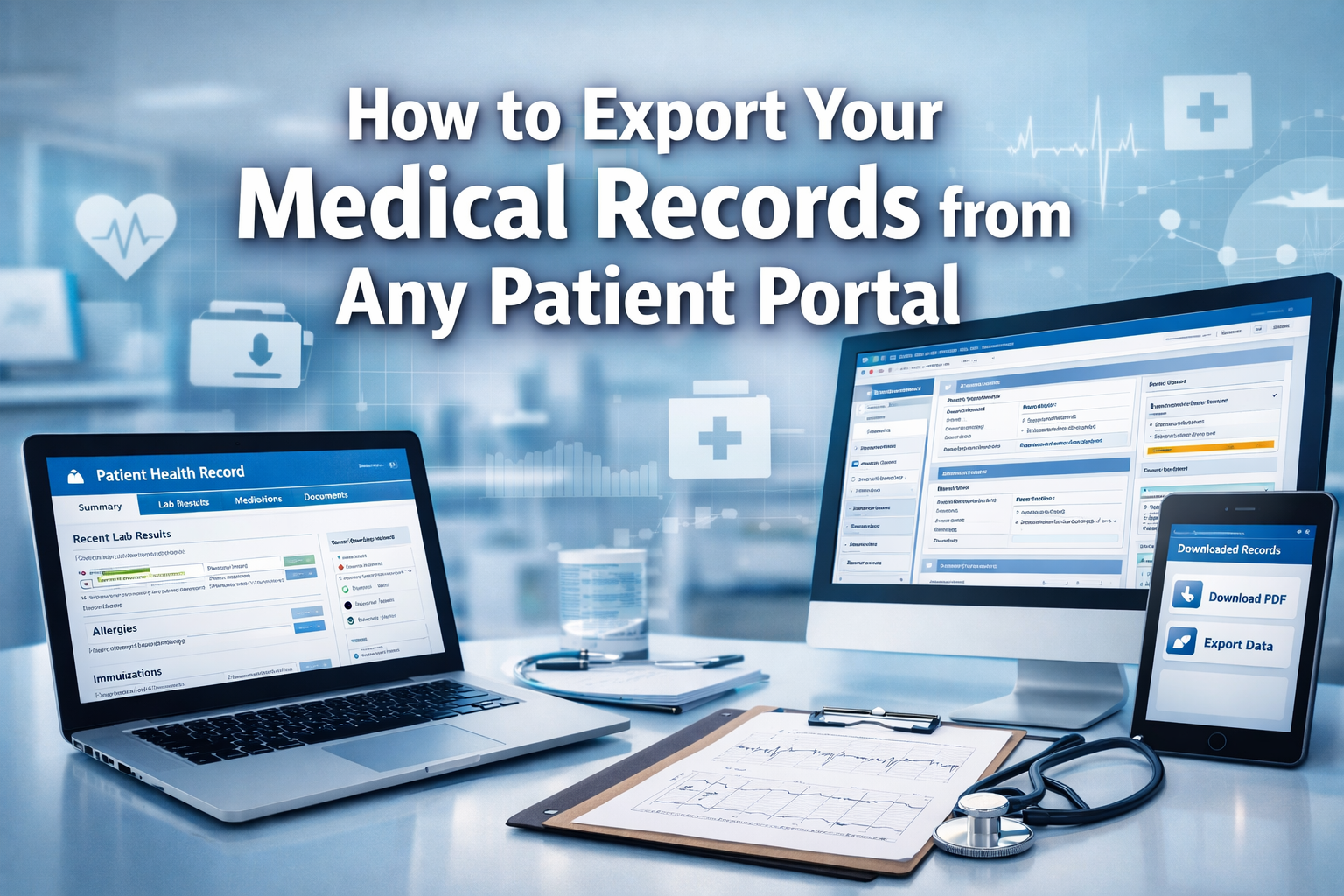
Most patient portals allow you to export your medical records by logging into your account, navigating to the "Medical Records" or "Health Information" section, and clicking a "Download" or "Export" button. The process typically takes 2-5 minutes and provides files in PDF or other digital formats that you can save to your computer or mobile device.
What Are Patient Portals and Why Export Your Medical Records?

Patient portals are secure online websites where you can access your health information 24/7. These platforms connect directly to your healthcare provider's electronic health record system, giving you real-time access to test results, visit summaries, medications, and more.
Why you should export your medical records:
- Switching doctors: New providers need your complete medical history.
- Emergencies: Having records on your phone can be lifesaving.
- Insurance claims: Documentation helps with coverage disputes.
- Personal tracking: Monitor your health trends over time.
- Legal protection: Records serve as evidence if medical issues arise.
The 21st Century Cures Act requires healthcare providers to give patients free, easy access to their electronic health information without delay.
How to Find Your Patient Portal Login Information?
Before you can export your medical records, you need access to your patient portal account.
Getting your login credentials:
- Check paperwork: Look for portal information on discharge papers, appointment summaries, or welcome packets.
- Call your provider: Ask the front desk for your portal website address and sign-up instructions.
- Visit the website: Most healthcare systems have portal links on their main website.
- Use your patient ID: You'll typically need your date of birth and either a medical record number or temporary access code.
Common portal names by healthcare system:
- Epic systems: MyChart.
- Cerner systems: HealtheLife or Patient Portal.
- Allscripts: FollowMyHealth.
- athenahealth: Patient Engagement Platform.
Choose the direct signup option if you're a new portal user, or use the "Forgot Password" feature if you've registered before.
Step-by-Step Guide to Export Your Medical Records

The exact steps vary by portal, but the basic process remains consistent across most platforms.
Standard export process:
- Log in to your patient portal using your username and password
- Navigate to the medical records section (often called "Health Records," "Medical History," or "Documents")
- Select the records you want - choose "All Records" for complete history or specific date ranges
- Choose your export format - PDF is the most common and user-friendly
- Click "Download" or "Export" - the system will prepare your file
- Save the file to your computer, phone, or cloud storage
Timeline expectations:
- Small files (under 50 pages): Download immediately
- Large files (complete medical history): May take 1-3 minutes to prepare
- Very large files: Some portals email you a download link
Troubleshooting common issues:
- Slow downloads: Try during off-peak hours (early morning or late evening)
- Missing records: Recent visits may take 24-48 hours to appear in the portal
- File won't open: Make sure you have a PDF reader installed on your device
What Medical Information Can You Export?
Most patient portals provide comprehensive access to your electronic health records, though the specific information varies by healthcare provider.
Typically included in exports:
- Visit summaries from appointments and procedures.
- Lab results, including blood work, imaging, and diagnostic tests.
- Medication lists with current and past prescriptions.
- Immunization records and vaccination history.
- Allergies and medical conditions are documented by your providers.
- Discharge summaries from hospital stays or surgeries.
Information that may be limited:
- Mental health records (often require separate authorization).
- Substance abuse treatment (protected by additional privacy laws).
- Records from other healthcare systems (unless specifically shared).
- Handwritten notes from older paper records.
File formats you might receive:
- PDF: Most readable format, works on any device.
- XML/FHIR: Structured data format for importing into other systems.
- Text files: Basic format with limited formatting.
The average complete medical record export ranges from 20 to 200 pages, depending on your medical history and how long you've been a patient.
Troubleshooting Common Export Problems
Even with user-friendly portals, technical issues can prevent successful medical record exports.
Portal won't load or crashes:
- Try a different web browser (Chrome, Firefox, Safari, Edge).
- Clear your browser cache and cookies.
- Disable browser extensions that might interfere.
- Use an incognito or private browsing window.
Download fails or times out:
- Check your internet connection stability.
- Try downloading smaller date ranges instead of all records at once.
- Use a computer instead of a mobile device for large files.
- Contact technical support if the problem persists.
Can't find the export option:
- Look for terms like "Download," "Export," "Print," or "Share."
- Check under "Medical Records," "Documents," or "Health Information."
- Some portals hide the option in account settings or preferences
- Ask your healthcare provider's IT support for guidance
File is corrupted or won't open:
- Try downloading again with a stable internet connection
- Use a different device or browser for the download
- Install the latest version of a PDF reader
- Contact the portal's technical support team
Most patient portal technical issues resolve within 24 hours, but don't hesitate to call your healthcare provider's support line for immediate assistance.
Alternative Ways to Get Your Medical Records
If your patient portal doesn't work or your healthcare provider doesn't offer online access, you have other options to export your medical records.
Direct provider requests:
- In-person: Visit the medical records office with photo ID.
- Phone requests: Call and ask about their records release process.
- Written requests: Some providers require signed authorization forms.
- Email requests: Check if your provider accepts secure email requests.
Third-party health record services:
- Apple Health: Connects to many patient portals automatically.
- Google Health: Imports records from participating healthcare systems.
- Microsoft HealthVault: Though discontinued, some features remain available.
- Personal health record apps: Many can import data from multiple sources.
Legal requirements for providers:
- Must provide records within 30 days of request (often much faster).
- Cannot charge excessive fees for electronic copies.
- Must provide records in the format you request when possible.
- Cannot withhold records due to unpaid bills for services.
Costs for alternative methods:
- Electronic copies: Usually free.
- Printed copies: May charge reasonable copying fees.
- Mailed records: You pay postage costs.
- Rush requests: Some providers charge expedited fees.
Choose the patient portal method when possible since it's typically the fastest and most cost-effective option.
Best Practices for Managing Exported Medical Records
Once you successfully export your medical records, proper organization and security become important for maximizing their value.
File organization tips:
- Create folders by year, provider, or medical condition.
- Use clear naming like "2026_Annual_Physical_DrSmith.pdf."
- Keep chronological order for easy reference during appointments.
- Separate by family member if managing multiple people's records.
Security and privacy measures:
- Password-protect sensitive medical files.
- Use encrypted storage like secure cloud services or encrypted hard drives.
- Limit sharing to only necessary healthcare providers.
- Delete from unsecured devices after transferring to safe storage.
Backup strategies:
- Multiple locations: Keep copies in at least two different places.
- Cloud and physical: Use both online storage and external drives.
- Regular updates: Export new records every 3-6 months.
- Version control: Keep track of which files are most current.
Sharing with new providers:
- Bring digital copies to appointments on a USB drive or smartphone.
- Email securely using patient portals when possible.
- Print key pages for providers who prefer paper copies.
- Highlight important information like allergies, current medications, and recent test results.
Well-organized medical records can significantly improve the quality of care you receive and reduce duplicate testing when switching providers.
Conclusion
Exporting your medical records from patient portals is a straightforward process that every patient should master in 2026. The ability to quickly download your complete health history provides valuable benefits for medical care, emergencies, and personal health tracking.
FAQ
How long does it take to export medical records from a patient portal?
Most exports complete within 2-5 minutes. Simple records download immediately, while comprehensive medical histories may take up to 3 minutes to prepare before download begins.
Are there fees to export your medical records electronically?
No, federal law requires healthcare providers to provide electronic copies of your medical records free of charge. You should never pay fees for downloading your own health information from patient portals.
What file format will my exported medical records be in?
Most patient portals export records as PDF files, which work on any device. Some advanced portals also offer XML or FHIR formats for importing into other health record systems.
Can I export medical records on my smartphone?
Yes, most modern patient portals work on mobile devices. However, large file downloads may be more reliable on computers with stable internet connections.
How far back do exported medical records go?
This varies by healthcare provider, but most portals include records from when they started using electronic health records, typically 5-15 years. Older paper records may not be available digitally.
What if my patient portal doesn't have an export option?
Contact your healthcare provider's medical records department directly. Federal law requires them to provide your records in electronic format, even if not available through the portal.
Can I export someone else's medical records from their patient portal?
Only with proper legal authorization. You need written permission, power of attorney, or legal guardianship documentation to access another adult's medical records.
How often should I export my medical records?
Export updated records every 3-6 months or after significant medical events like surgeries, new diagnoses, or medication changes to keep your personal files current.
What should I do if my exported medical records file is corrupted?
Try downloading again with a stable internet connection. If problems persist, contact your patient portal's technical support or request records directly from the medical records department.
Can exported medical records be imported into other patient portals?
Some portals accept imported health data, especially in standard formats like FHIR. However, you'll typically need to upload records manually or share them directly with new healthcare providers.
Are mental health records included in standard medical record exports?
Mental health records may require separate authorization due to additional privacy protections. Check with your mental health provider about their specific patient portal policies.
What happens if I forget my patient portal login information?
Use the "Forgot Password" or "Forgot Username" links on the portal login page, or contact your healthcare provider's registration desk for help resetting your account access.